First launch explained
First launch explained
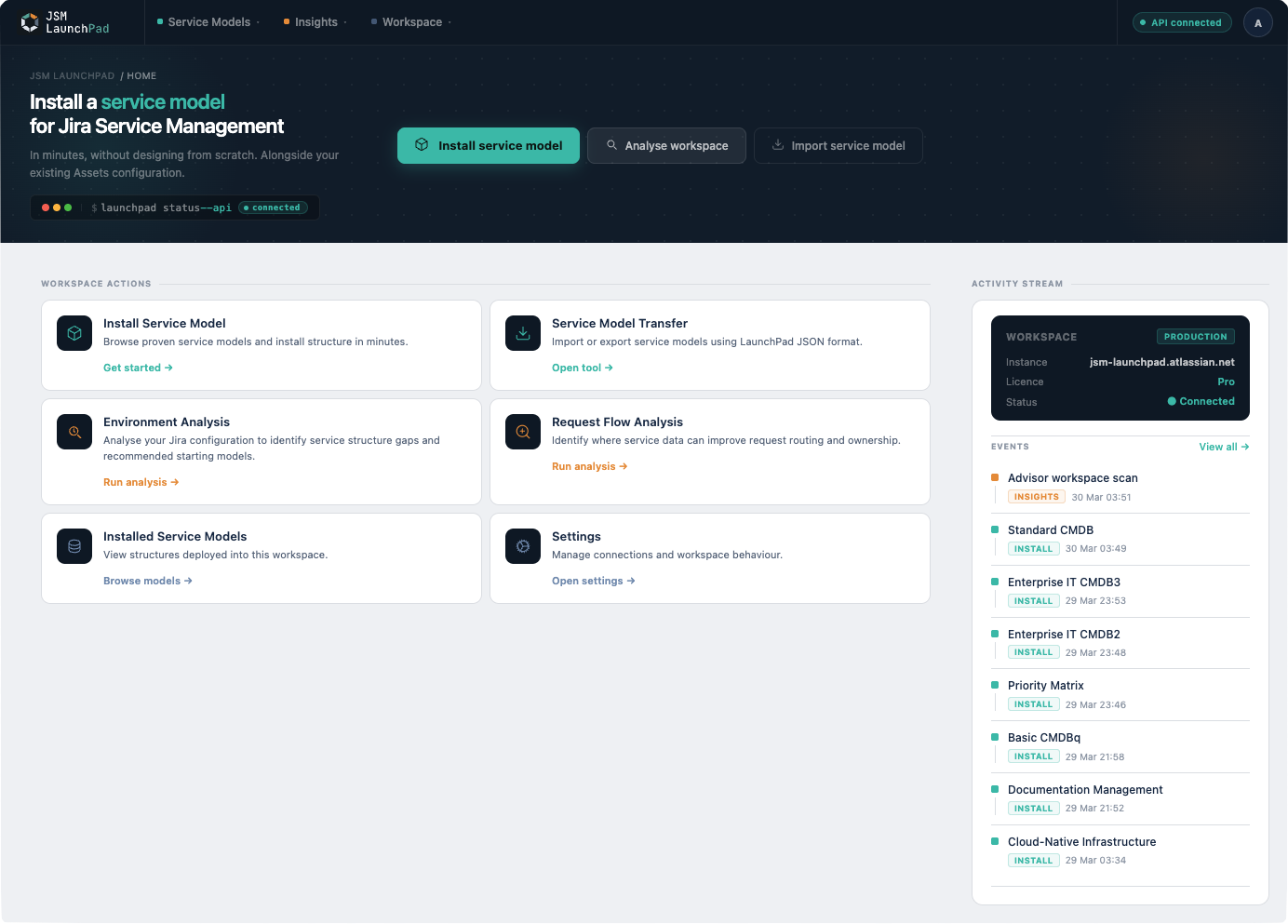
When you open JSM LaunchPad for the first time, the app is not configuring your environment yet. You are selecting a starting structure: a blueprint for how your service management data will be organised inside Assets.
Think of it as choosing the floor plan before moving in. You are not locked into this choice forever. You are picking a starting point that fits your current needs.
What you will see
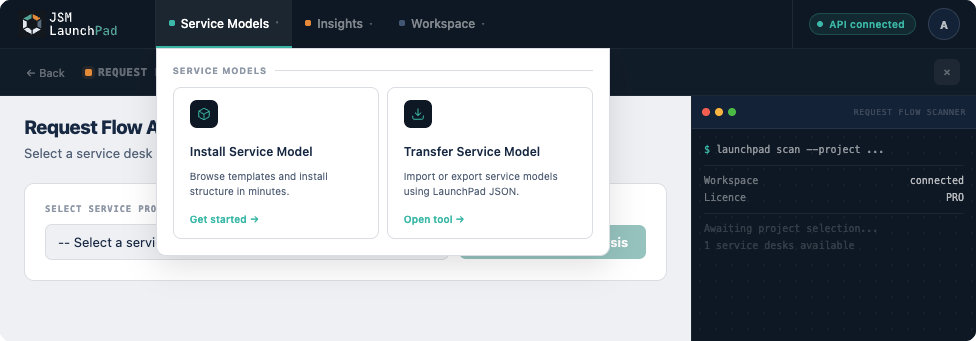
The app presents a set of schema options. Each one represents a different scope and complexity of service data model. The most common starting points are:
| If your goal is | Choose |
|---|---|
| A simple help desk with basic asset tracking | Basic CMDB |
| Typical IT support with people, teams, and applications | Core Schema |
| A multi-team organisation with infrastructure, services, and vendors | Standard CMDB |
If you are unsure, choose Core Schema. It fits most organisations and can be extended later by connecting additional schemas. You can browse the full set of options in the Service model reference.
Not sure which schema suits your situation? Which schema should I choose? walks through the decision in detail.
What happens when you deploy
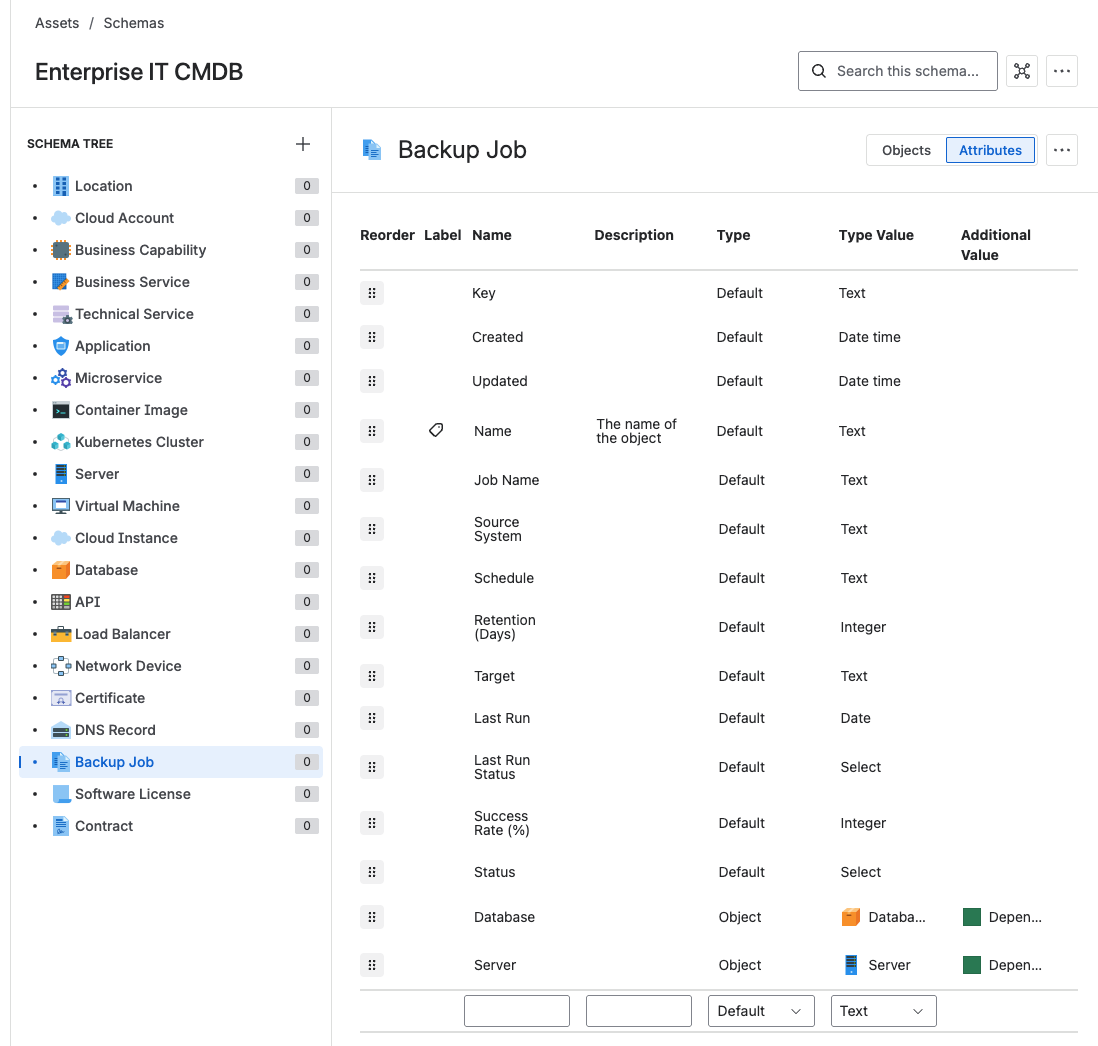
When you select a schema and click deploy, LaunchPad creates the complete data structure inside Assets: object types, relationships, attributes, and references. This typically completes in a minute or two, depending on the size of the schema.
Nothing is deleted. No existing data is modified. No users are affected. The schema is created alongside whatever already exists in your Assets environment.
After deployment, your Assets section will contain a fully structured set of object types ready to be populated with your organisation's data.
What to do after deploying
Do not start customising the schema immediately. The next step is to connect it to a service space so you can see it working with real requests. That is what makes the difference between a configured tool and a functioning service desk.