Installation safety and rollback
Installation safety and rollback
Installation Safety and Rollback What LaunchPad protects during installation, how failure is handled, and what to do if something looks wrong.
One of the most common questions before installing anything in a production Jira environment is: "What if it breaks something?" It is a fair question. This page answers it directly.
LaunchPad is isolated by design
Everything LaunchPad creates during installation goes into a new Assets schema. Nothing outside that schema is touched. Your existing schemas, their data, your Jira workflows, your automation rules, and any other Assets configuration remain exactly as they were before you started.
This isolation is intentional. LaunchPad is designed to operate as an additive layer: it builds new structure without modifying what already exists.
What happens during installation
When you start an installation, LaunchPad works through a structured sequence:
-
A new Assets schema is created with the name of the selected template
-
Object types are created within the schema, in the correct dependency order
-
Relationships between object types are established
-
Ownership attributes and reference fields are applied
For larger templates, this takes longer. The Enterprise IT CMDB, for example, has 21 object types with layered dependencies. The progress indicator in the LaunchPad UI reflects each stage as it completes.
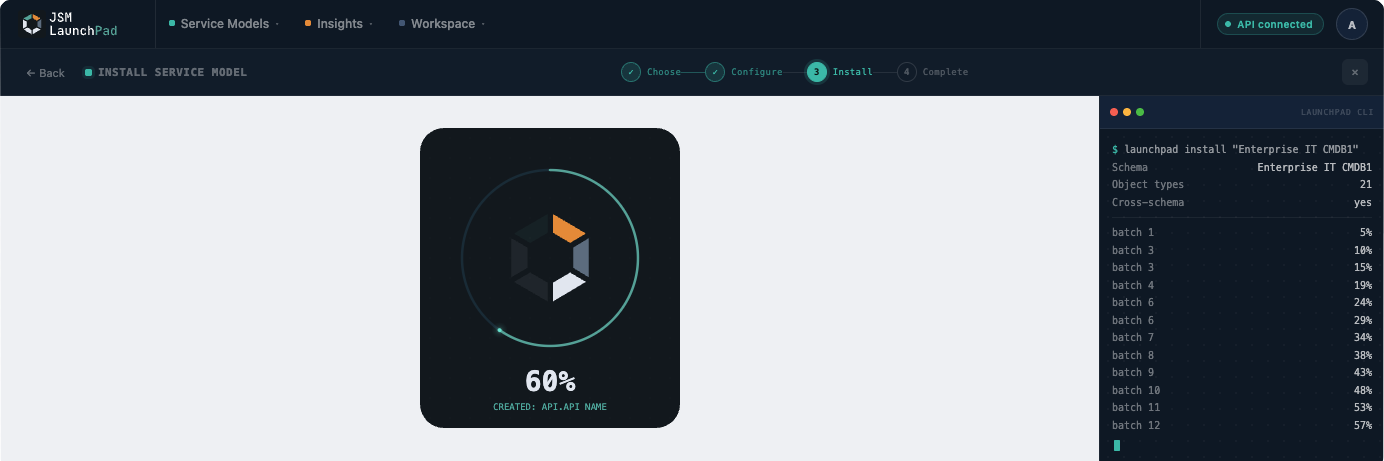
Pro tip: Do not close the browser window or navigate away while installation is running. If you do, the installation may continue in the background, but you will lose visibility of the progress state and may need to check Assets manually to confirm completion.
How failure is handled
If installation fails at any point, a partial schema may be left behind in Assets. LaunchPad does not automatically remove partially created structures. You should check Assets → Schemas (from the Jira sidebar) for any incomplete schema and delete it manually before re-running.
Once the failure has been identified and any underlying issue resolved (usually a permissions problem), installation can be safely re-run.
What is and is not protected
| Protected | Not affected by LaunchPad |
|---|---|
| All existing Assets schemas | Jira workflows |
| All existing object data | Automation rules |
| All existing configurations | Request type configurations |
| All Jira space settings | Existing ticket data |
LaunchPad does not touch anything it did not create.
Common failure causes
Most installation failures fall into one of two categories.
Permissions. The account running the installation does not have permission to create object schemas in Assets. This is the most common cause and the first thing to check. Go to Assets → Schemas (from the Jira sidebar) and confirm you can see a "Create schema" option. If you cannot, speak to your Jira administrator.
Timeouts on large schemas. Occasionally, a large schema installation will stall due to an API timeout rather than a permissions issue. If the progress indicator stops moving for several minutes, wait a little longer before concluding something has failed. If the UI shows an error, check whether a partial schema was created in Assets before re-running.
After a failed installation
If installation fails:
-
Go to Assets → Schemas (from the Jira sidebar) and confirm no partial schema has been left behind
-
If a partial schema is present, delete it manually before re-running
-
Resolve the underlying cause (permissions being the most likely culprit)
-
Re-run the installation from the LaunchPad home screen
If the problem persists, raise a support request and include the name of the schema you were trying to install and any error messages that appeared.