How to run a scan
How to run a scan
Running a scan takes less than a minute. This page covers what you need before you start and the steps for both Environment Analysis and Request Flow Analysis.
Before you start
For Environment Analysis
You need an API token configured in LaunchPad. If you haven't set one up yet, go to LaunchPad Settings and add your Atlassian API token. The scanner uses it to read your Jira instance's spaces, service desks, and custom fields.
No other configuration is needed. The scan is read-only and doesn't change anything in your instance.
For Request Flow Analysis
You need a Pro licence. Request Flow Analysis isn't available on Free plans.
You also need at least one service space in your Jira instance. The scanner analyses a single space at a time, so you'll choose which one to scan.
Running Environment Analysis
- Open JSM LaunchPad from your Jira instance.
- Click the Environment Analysis card on the main screen.
- Click Run Analysis.
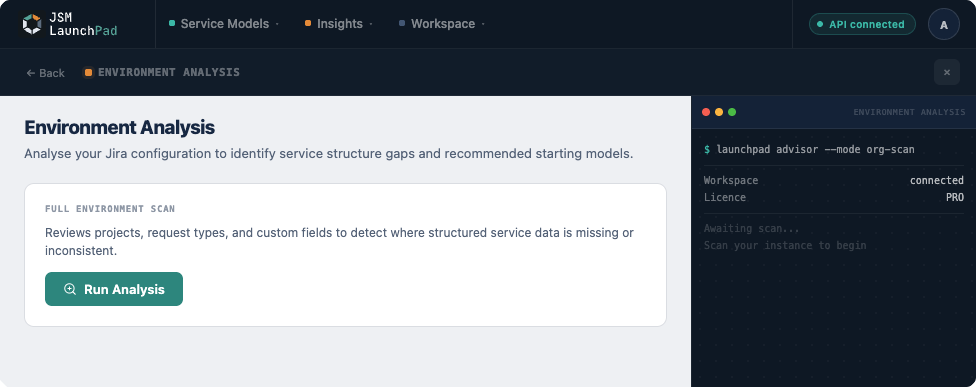
That's it. The scan typically takes three to five seconds.
A terminal sidebar shows progress as LaunchPad reads your instance. When the scan completes, your results appear automatically.
Running Request Flow Analysis
- Open JSM LaunchPad from your Jira instance.
- Click the Request Flow Analysis card on the main screen.
- Select the service space you want to analyse from the dropdown.
- Click Run Project Analysis.
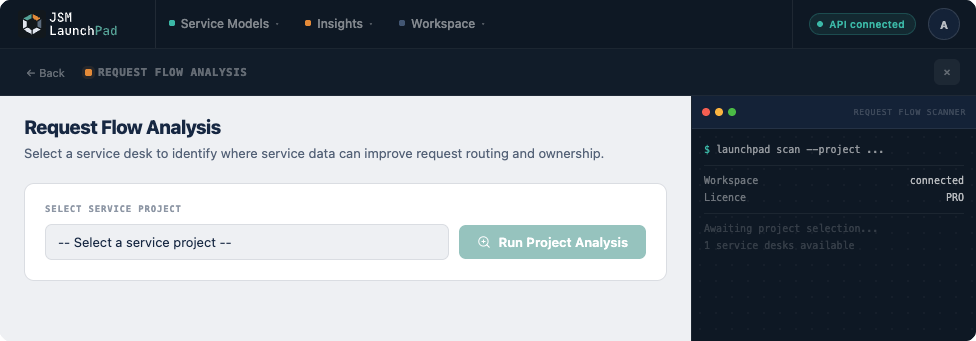
The scan examines your space's request types and fields, then returns a breakdown of enrichment opportunities.
How long it takes
Both scans are fast.
| Scan type | Typical duration |
|---|---|
| Environment Analysis | 3 to 5 seconds |
| Request Flow Analysis | A few seconds, depending on the number of request types |
There's nothing to wait for. Results appear immediately.
What to do next
Once you have results, the next step is understanding what they mean. See Understanding scan results for a guide to reading and interpreting what the scanner found.